For Windows · examines: PE (x86, x64, ARM, ARM64), DOS (MZ), ARM Linux (ELF)

Dismonite – disassembler and debugger for executables

Open. Understand. Watch. Turn back into source.

Dismonite reads a program (x86, x64, ARM32/Thumb-2, ARM64/AArch64), follows its code, names jump targets, imports and texts and shows what is in it – and it runs the program in the debugger, with no source needed. The export as .asm assembles with the Asmonite assembler into the same file again, byte for byte. A small, portable program: unpack, start, done.

Version 0.7.6 (test version) · Windows 10/11 · 2.1 MB · no installation · free · no tracking · Dismonite is in the same ZIP as Asmonite

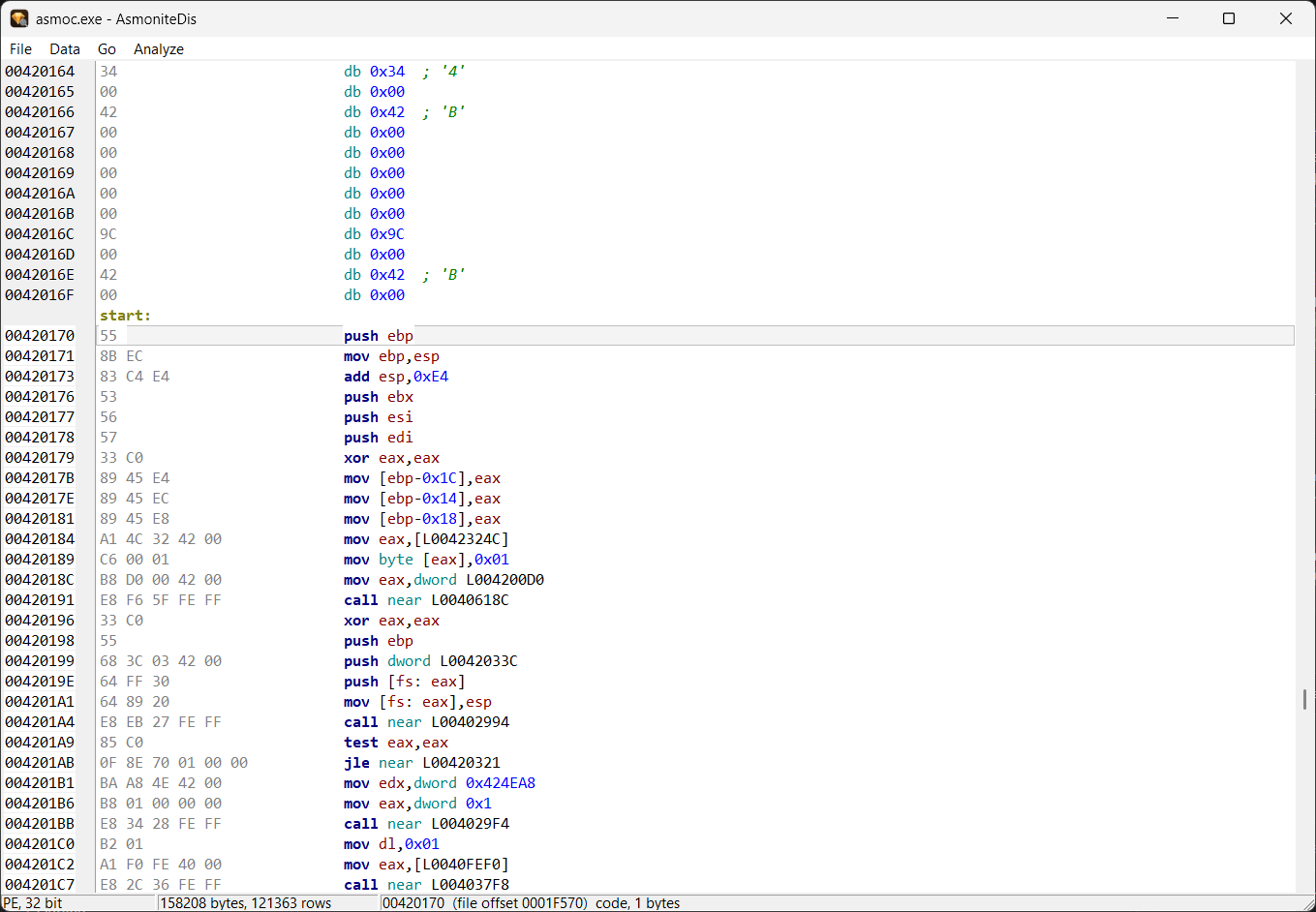
Dismonite: code at the entry point with labels
After the analysis: the code at the entry point start, jump targets and addresses as labels.

What's inside

From someone else's EXE to source that assembles again – with a debugger in between.

🔍

Analysis from the entry point

Follows the code from the entry point, exports and TLS callbacks (PE) or CS:IP (MZ) and from the relocation targets; what is code is shown as code, the rest as data.

🏷️

Labels instead of addresses

Jump targets, functions and data get names you can change. Ctrl+click jumps to the target, Alt+← goes back, Ctrl+R lists all references.

🧱

File structures with field names

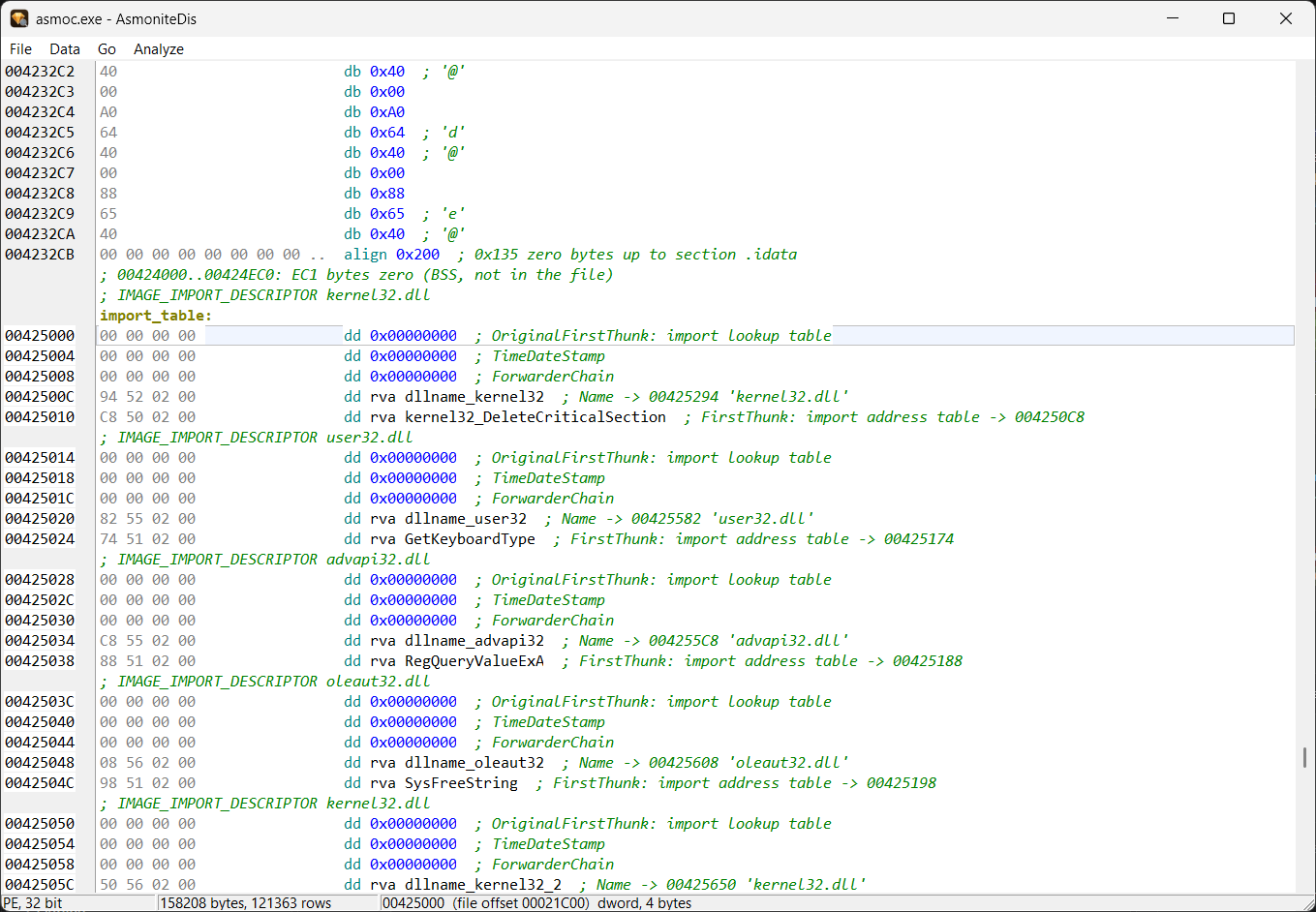
PE header, sections, imports, exports, resources, ELF program headers and symbols are shown field by field with size and name as a comment.

🗂️

Resources and message texts

String tables (RT_STRING) are recognized text by text, with the label str_<number>. A constant before a call that loads a message shows the text as a hint.

🔁

Export with a way back

The export as .asm carries labels, comments and marks and assembles with asmoc into the same file again – for x86, x64, ARM Thumb-2 and ARM64. For 32-bit Windows programs optionally with if / else / endif instead of cmp and a jump, where the assembler makes the same bytes of it, also if zero on the flags and loops with do / while (9,090 if and 1,134 loops in the 32-bit dcc32).

✍️

Mark and comment

Mark elements as code, byte, word, dword, qword, ASCII or UTF-16, add comments and comment lines. Everything is kept in <program>.dmon next to the program.

🐞

Debugger without source

Breakpoints, step over/into, run to cursor, pause. Registers, stack and memory are always visible; changed values turn red. Where the program stops becomes code – the analysis grows along.

➡️

Jump note

Where the program stands before a jump it is about to take (a conditional one only if the condition holds), the row says whether it goes up or down, and where to.

💡

Instruction info on F1

In the Info tab one key press explains the instruction, the imported Windows function with its parameters or the DOS interrupt. German and English; the info follows the cursor.
What Dismonite opens and how it debugs

ProgramDisassemblerDebugger
Windows x86 (PE)✓ with exportdirectly on this computer
Windows x64 (PE32+)✓ with exporton this computer, through the helper server asmodbgx64 as a child process
Windows on ARM (ARM32/Thumb-2)✓ with exporton a Windows on ARM computer (server asmodbg, ssh or directly on the network)
Windows ARM64 (PE32+)✓ with exporton a Windows on ARM64 computer (server asmodbg64, ssh, directly or locally)
DOS (MZ, COM)✓ 16-bit, segment:offsetin QEMU with FreeDOS, starts by itself
ARM Linux (ELF, 32-bit)✓through gdbserver in Raspberry Pi OS under QEMU

Who is Dismonite for?

For everyone who wants to understand a program whose source they do not have.

🔬

Examining programs

  • What does the file import, what does it export?
  • Which texts are in the resources?
  • Follow, mark and comment code
  • All in one window
🎓

Learning

  • What does the compiler make of my code?
  • Step by step, registers and flags in view
  • Jump note: before every jump it says where it goes
  • F1 explains every instruction
🔁

Rebuilding and changing

  • Export as assemblable .asm
  • Unchanged: the same file, byte for byte
  • Changed: an adjusted program
  • Carry on in the editor Asmonite
🕹️

Retro and embedded

  • Debug DOS programs in FreeDOS
  • ARM Linux programs in the Raspberry Pi guest
  • Windows on ARM and ARM64 on real hardware
  • DOS and ARM locally in QEMU

In 60 seconds

From the ZIP to the first breakpoint in an executable – with the example that comes with it.

  1. Unpack and start Dismonite.exe. No installation; File > Open starts in the program's folder.
  2. Open examples\demo.exe. A small program: counts from 1 to 5 and calls printf.
  3. Menu Analyze > Follow code from the entry point and the exports. The code from the entry point is there with labels; Ctrl+click on a jump or call goes to the target, Alt+← back.
  4. F1 on a line explains it in the Info tab – the instruction or the imported function with its parameters.
  5. Press F7. Dismonite starts the program and stops at the entry point; registers and stack are on the right.
  6. Continue with F8; before a jump the row says where it goes. Changed values turn red.
  7. File > Export as .asm: makes an .asm that asmoc assembles into the same file again.

More examples in the ZIP: examples\dos\HELLO.EXE (DOS, QEMU), examples\winarm\pe_arm32_hello_world.asm (Windows on ARM) and examples\arm64\a64asm_hello.asm (ARM64), which Asmonite builds with F9 into programs Dismonite opens.

From the EXE back to source

The export is not a rough guide that needs rework by hand: it assembles.

EXEexecutable
→
Dismoniteanalyze, comment
→
.asmwith labels
→
asmocassembler
→
EXEidentical, byte for byte
  • Shows addresses, bytes, instruction and comment – even for large files (tested up to 64 MB)
  • Padding becomes one align line, zero bytes one item
  • Texts as ASCII and UTF-16 are recognized; Ctrl+F3 jumps to the next
  • For x64 and ARM64 the export contains instructions instead of db lines, every line is assembled back to check it
Dismonite: the import table with field names
The import table: every field with its size and name, RVAs as labels, padding as one align line.

The debugger

Watch an executable – without source, on Windows, DOS and ARM.

Windows (PE)

Starts the program directly on Windows. Breakpoints, step over/into, run to cursor, pause; the program's console appears in the output view.

DOS (MZ)

Starts QEMU with FreeDOS by itself; 16-bit registers, addresses as segment:offset. A second run starts in the running QEMU.

ARM-Linux (ELF)

Copies the program into the Raspberry Pi guest over ssh and debugs it through gdbserver. If no guest runs, Dismonite asks and starts it.

Windows on ARM (PE)

Copies the 32-bit ARM program to a real Windows on ARM computer and debugs it there through the small server asmodbg – either over ssh or directly on the network with a pairing code. “Search LAN” finds running servers on the local network.

x64 (PE32+)

Starts the 64-bit program on this computer; the small helper asmodbgx64 runs as a child process. Registers rax…r15, stack and memory with 64-bit addresses.

ARM64 (PE)

Debugs on a Windows on ARM computer through the server asmodbg64 – ssh, directly on the network or locally if Dismonite itself runs there. Registers x0…x30, sp, pc, flags.

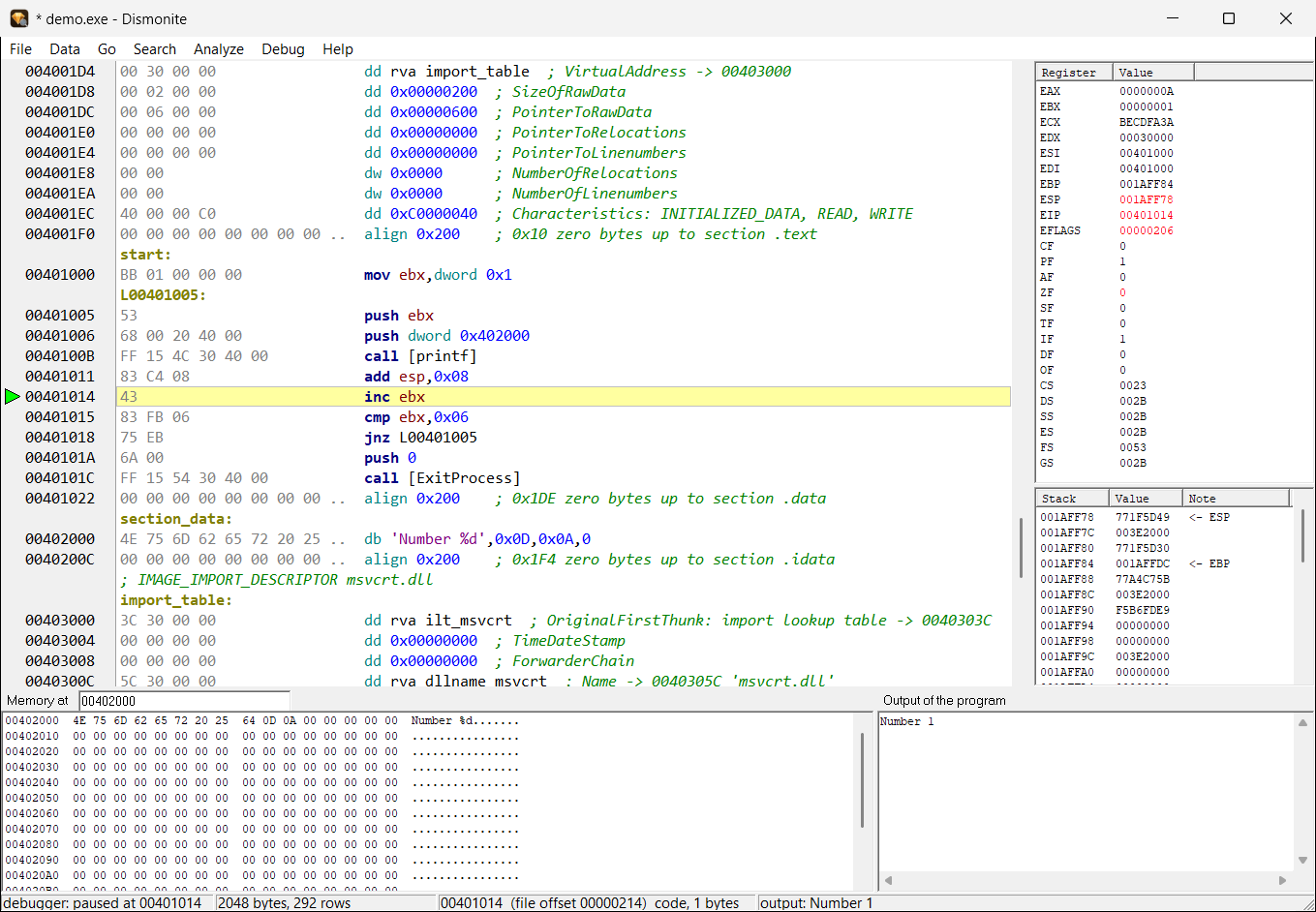
Dismonite: debugging demo.exe with registers, stack, memory and output
Windows: demo.exe in the debugger without source – stopped after the first printf: registers and stack on the right, below the memory of the data section and the output “Number 1”.
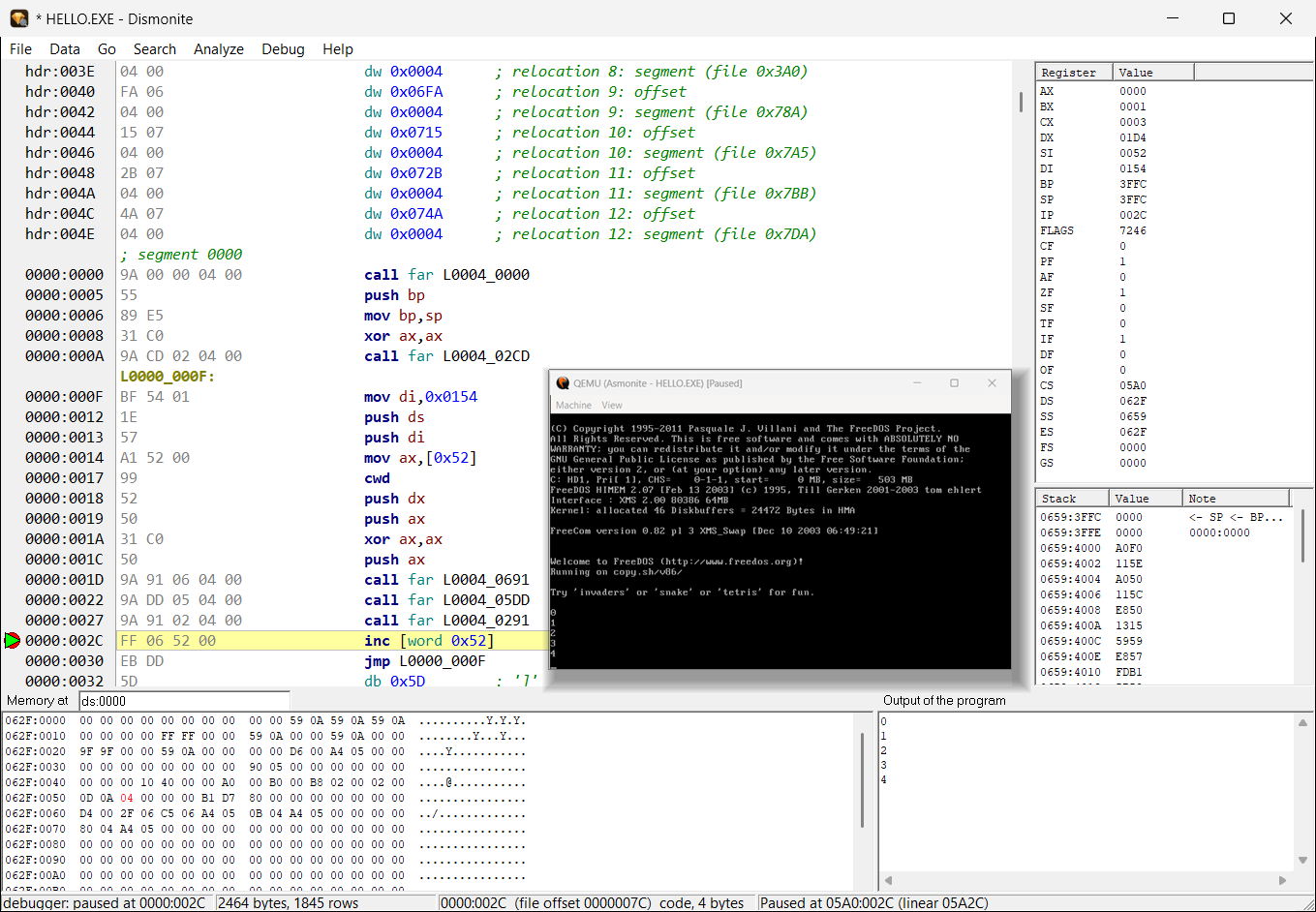
Dismonite: a DOS program stopped at a breakpoint, QEMU window with its output
DOS: a Turbo Pascal program at a breakpoint in its loop; QEMU with FreeDOS, the numbers also in the output view.
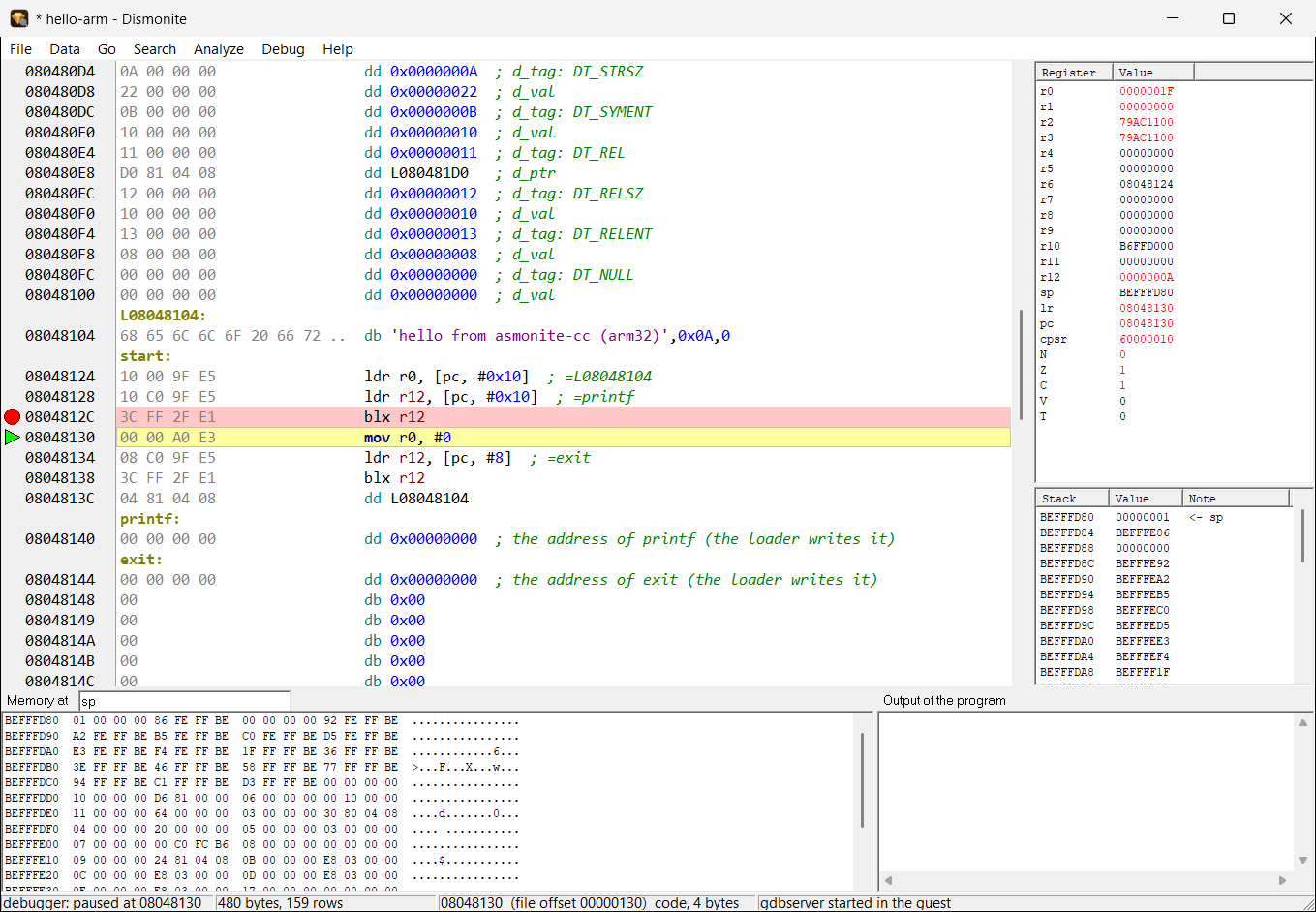
Dismonite: an ARM Linux program after a step over printf, ARM registers and stack
ARM Linux: hello-arm in the Raspberry Pi guest, after a step over printf – ARM registers, the stack from sp and the memory there.

What Dismonite does not do (yet)

Keyboard shortcuts

The most important commands at a glance. The debug keys are the same in Dismonite and Asmonite.

KeyDebugging and help
F1Instruction info: instruction, function, interrupt
F5Toggle breakpoint
F9Start / continue
F8 / F7Step over / step into
F4Run to cursor
Strg+F2End the debug session
Strg+F · F3Find · find next
Strg+GGo to address
KeyAnalysis
Cmark as code
B W D Qbyte, word, dword, qword
A / UASCII / UTF-16 text
; / EnterComment / comment line before
NRename label
Strg+RReferences to this place
Strg+F3Next string
Alt+← / Alt+→Back / forward

Download

Dismonite is in one ZIP archive together with Asmonite – unpack and start, no installation. The ZIP is on asmonite.com.

Test version – feedback welcome

Asmonite 0.7.6

Dismonite (disassembler and debugger) and Asmonite (editor, assembler, debugger), asmoc (assembler on the command line), the QEMU scripts for FreeDOS and Raspberry Pi OS, the debug servers asmodbg, asmodbg64 and asmodbgx64 (Windows on ARM, ARM64, x64), the instruction info (German and English) and examples for Windows (x86, x64), DOS and ARM (Thumb-2, ARM64).

Windows 10 (1809 or later) / 11 Program: English · documentation: German / English 2.1 MB Date: 2026-10-31
SHA-256: 2484d078507abefc2c0b2cd27c8bddaeb464dd6b329ee617369b41c22c10ef90
⬇ Download

What the programs do – and what not

  • No installation, no registry entries: Dismonite keeps its marks in <program>.dmon next to the examined program.
  • No telemetry, no ads, no phoning home.
  • Only the QEMU scripts go online – and only after asking: QEMU (winget), the FreeDOS floppy, Raspberry Pi OS. Dismonite talks over ssh only to its own guest at 127.0.0.1. To debug on Windows on ARM it connects only to the computer you name; “Search LAN” asks the local network once by UDP for that.
  • To remove it, delete the folder.

Check the download

  • The checksum in a command prompt: certutil -hashfile Asmonite-0.7.6.zip SHA256 – it must match the value above.
  • The programs are not signed. Windows may therefore ask on the first start (“Windows protected your PC” → “More info” → “Run anyway”).
  • Docs, examples and all versions also on GitHub.
  • Questions, bugs, wishes: mail@asmonite.com